---
title: Assign education and track your team's engagement
description: How organization admins assign courses and collections, schedule reminder emails, track completion, and export education engagement data.
---
[Skip to content](https://help.joinviolet.com/provider-organizations/assign-education-and-track-engagement#main-content)
[Request support](https://help.joinviolet.com/kb-tickets/new?hsLang=en)
[](https://help.joinviolet.com?hsLang=en)
- [Home](https://help.joinviolet.com/)
- Provider & Care Teams
Show submenu for Provider & Care Teams
- [Demo](https://help.joinviolet.com/general/about)
- [Details](https://help.joinviolet.com/providers-care-teams)
- Care Coordination
Show submenu for Care Coordination
- [Demo](https://help.joinviolet.com/provider-organizations/verified-inclusive-org-0)
- [Details](https://help.joinviolet.com/care-coordinators)
- Provider Organization Admins
Show submenu for Provider Organization Admins
- [Demo](https://help.joinviolet.com/provider-organizations/verified-inclusive-org-0-2)
- [Details](https://help.joinviolet.com/provider-organizations)
- Health Plans & Network Managers
Show submenu for Health Plans & Network Managers
- [Demo](https://help.joinviolet.com/provider-organizations/verified-inclusive-org-0-0)
- [Details](https://help.joinviolet.com/health-plans-provider-network-managers)
Open main navigation
Close main navigation
- [Home](https://help.joinviolet.com/)
- Provider & Care Teams
Show submenu for Provider & Care Teams
- [Demo](https://help.joinviolet.com/general/about)
- [Details](https://help.joinviolet.com/providers-care-teams)
- Care Coordination
Show submenu for Care Coordination
- [Demo](https://help.joinviolet.com/provider-organizations/verified-inclusive-org-0)
- [Details](https://help.joinviolet.com/care-coordinators)
- Provider Organization Admins
Show submenu for Provider Organization Admins
- [Demo](https://help.joinviolet.com/provider-organizations/verified-inclusive-org-0-2)
- [Details](https://help.joinviolet.com/provider-organizations)
- Health Plans & Network Managers
Show submenu for Health Plans & Network Managers
- [Demo](https://help.joinviolet.com/provider-organizations/verified-inclusive-org-0-0)
- [Details](https://help.joinviolet.com/health-plans-provider-network-managers)
- [Request support](https://help.joinviolet.com/kb-tickets/new)
How can we help you?
- There are no suggestions because the search field is empty.
1. [Violet Help Center](https://help.joinviolet.com/?hsLang=en)
2. [Provider organizations](https://help.joinviolet.com/provider-organizations?hsLang=en)
3. [Education & Engagement](https://help.joinviolet.com/provider-organizations?hsLang=en#education-engagement)
# Assign education and track your team's engagement
## Create assignments, send reminders, and read the engagement dashboard
Violet lets organization admins assign education to their team and follow engagement in real time — courses completed, hours of learning, CE/CME credits earned, and who still needs a nudge. This article covers creating assignments, sending reminders, and reading the engagement dashboard.
### Where to find it
In the left-hand navigation, select **My organization** > **Education**. You'll see two pages:
- **Education engagement** — completions and learning metrics across your whole team.
- **Assignments** — education you've assigned, with per-assignment progress.
### Create an assignment
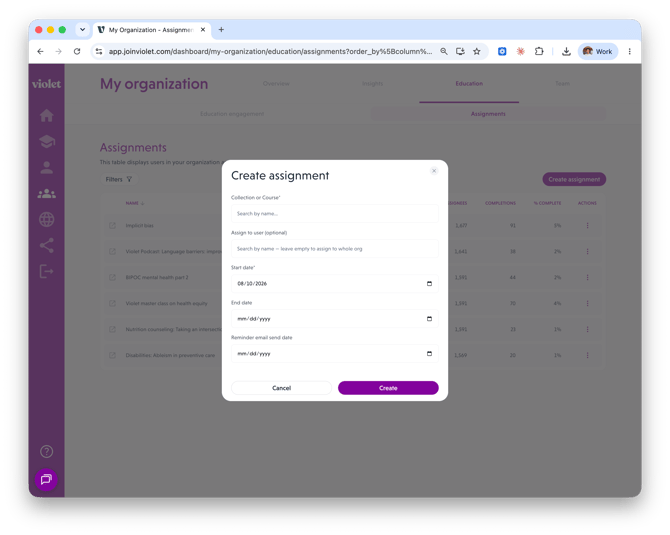
1. Go to **My organization** > **Education** > **Assignments**.
2. Click **Create assignment**. (If you don't see this button, assignment management may not be enabled for your organization yet — contact support@joinviolet.com and we'll set it up.)
3. Fill in the assignment:
- **Collection or Course** — start typing to search Violet's catalog; each result is labeled *Course* or *Collection*.
- **Assign to user (optional)** — pick a specific person, or leave it empty to assign to your whole organization.
- **Start date** — defaults to today.
- **End date** (optional) — when the assignment should be completed.
- **Reminder email send date** (optional) — schedule an automatic reminder email between the start and end dates.
4. Click **Create**. Assigned users are notified by email.
### Track an assignment's progress
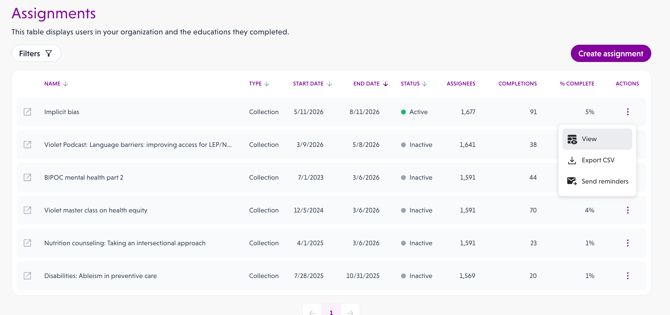
The Assignments table shows every assignment with its **Type** (Course or Collection), **Start date**, **End date**, **Status** (Active or Inactive), **Assignees**, **Completions**, and **% complete**.
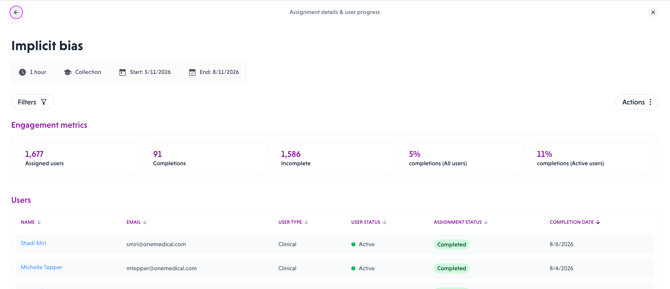
1. Click an assignment (or its **Actions** menu > **View**) to open the assignment details.
2. Review the **Engagement metrics** tiles: assigned users, completions, incomplete, and completion percentage.
3. Scroll to the **Users** table to see each person's status — *Completed*, *Started*, or *Not started* — with their completion date. Filter by user type, completion status, or onboarding status to focus the list.
### Send completion reminders
1. From the Assignments table or the assignment details view, open **Actions** and click **Send reminders**.
2. Confirm with **Send reminders**. Everyone who hasn't completed the assignment receives an email reminder.
**Tip:** in the assignment details view, reminders respect any filters you've applied — for example, filter to *Clinical* users first to remind only your clinical team.
### Read the Education engagement dashboard
Go to **My organization** > **Education** > **Education engagement** for the organization-wide view:
- **Metric tiles** — courses (or collections) completed, hours learning, average course rating, and CE/CME credits earned.
- **Course view / Collection view** toggle — flip the whole page between individual courses and curated collections.
- **Filters** — by course or collection name, user name, user type (clinical / non-clinical), date range (last 30 days through all time), and community of focus.
- **Completions table** — each row shows the learner, the course or collection, publisher, completion date, hours, and the communities the education focuses on.
### Export engagement data
Click **Export CSV** on the Education engagement page to download the filtered completion data — useful for compliance records or sharing with leadership. Individual assignments can also be exported from their **Actions** menu.
### Related articles
- Adding and managing your team on Violet
- Understanding your organization's inclusivity data and reports
- [Overview](https://help.joinviolet.com/overview?hsLang=en#main-content)
- [Demo](https://help.joinviolet.com/overview?hsLang=en#demo)
- [Details](https://help.joinviolet.com/overview?hsLang=en#details)
- [Providers & Care Teams](https://help.joinviolet.com/providers-care-teams?hsLang=en#main-content)
- [Profile & Benchmarks](https://help.joinviolet.com/providers-care-teams?hsLang=en#profile-benchmarks)
- [CE/CME & Certificates](https://help.joinviolet.com/providers-care-teams?hsLang=en#ce-cme-certificates)
- [Education](https://help.joinviolet.com/providers-care-teams?hsLang=en#education)
- [Care Coordinators](https://help.joinviolet.com/care-coordinators?hsLang=en#main-content)
- [Demo](https://help.joinviolet.com/care-coordinators?hsLang=en#demo)
- [Getting Started](https://help.joinviolet.com/care-coordinators?hsLang=en#getting-started)
- [Provider Search](https://help.joinviolet.com/care-coordinators?hsLang=en#provider-search)
- [Provider organizations](https://help.joinviolet.com/provider-organizations?hsLang=en#main-content)
- [Demo](https://help.joinviolet.com/provider-organizations?hsLang=en#demo)
- [Insights & Reports](https://help.joinviolet.com/provider-organizations?hsLang=en#insights-reports)
- [Education & Engagement](https://help.joinviolet.com/provider-organizations?hsLang=en#education-engagement)
- [Team Management](https://help.joinviolet.com/provider-organizations?hsLang=en#team-management)
- [Health Plans & Provider Network Managers](https://help.joinviolet.com/health-plans-provider-network-managers?hsLang=en#main-content)
- [Demo](https://help.joinviolet.com/health-plans-provider-network-managers?hsLang=en#demo)
- [Network Insights](https://help.joinviolet.com/health-plans-provider-network-managers?hsLang=en#network-insights)
- [Provider Search](https://help.joinviolet.com/health-plans-provider-network-managers?hsLang=en#provider-search)
[](https://joinviolet.com)
Powering person-centered health care, everywhere.
[mailto:support@joinviolet.com](mailto:support@joinviolet.com)
Copyright © 2026, Violet Health