---
title: Add and manage your team on Violet
description: How organization admins add users individually or via CSV bulk upload, send invite reminders, edit member details, and remove users.
---
[Skip to content](https://help.joinviolet.com/provider-organizations/add-and-manage-your-team#main-content)
[Request support](https://help.joinviolet.com/kb-tickets/new?hsLang=en)
[](https://help.joinviolet.com?hsLang=en)
- [Home](https://help.joinviolet.com/)
- Provider & Care Teams
Show submenu for Provider & Care Teams
- [Demo](https://help.joinviolet.com/general/about)
- [Details](https://help.joinviolet.com/providers-care-teams)
- Care Coordination
Show submenu for Care Coordination
- [Demo](https://help.joinviolet.com/provider-organizations/verified-inclusive-org-0)
- [Details](https://help.joinviolet.com/care-coordinators)
- Provider Organization Admins
Show submenu for Provider Organization Admins
- [Demo](https://help.joinviolet.com/provider-organizations/verified-inclusive-org-0-2)
- [Details](https://help.joinviolet.com/provider-organizations)
- Health Plans & Network Managers
Show submenu for Health Plans & Network Managers
- [Demo](https://help.joinviolet.com/provider-organizations/verified-inclusive-org-0-0)
- [Details](https://help.joinviolet.com/health-plans-provider-network-managers)
Open main navigation
Close main navigation
- [Home](https://help.joinviolet.com/)
- Provider & Care Teams
Show submenu for Provider & Care Teams
- [Demo](https://help.joinviolet.com/general/about)
- [Details](https://help.joinviolet.com/providers-care-teams)
- Care Coordination
Show submenu for Care Coordination
- [Demo](https://help.joinviolet.com/provider-organizations/verified-inclusive-org-0)
- [Details](https://help.joinviolet.com/care-coordinators)
- Provider Organization Admins
Show submenu for Provider Organization Admins
- [Demo](https://help.joinviolet.com/provider-organizations/verified-inclusive-org-0-2)
- [Details](https://help.joinviolet.com/provider-organizations)
- Health Plans & Network Managers
Show submenu for Health Plans & Network Managers
- [Demo](https://help.joinviolet.com/provider-organizations/verified-inclusive-org-0-0)
- [Details](https://help.joinviolet.com/health-plans-provider-network-managers)
- [Request support](https://help.joinviolet.com/kb-tickets/new)
How can we help you?
- There are no suggestions because the search field is empty.
1. [Violet Help Center](https://help.joinviolet.com/?hsLang=en)
2. [Provider organizations](https://help.joinviolet.com/provider-organizations?hsLang=en)
3. [Team Management](https://help.joinviolet.com/provider-organizations?hsLang=en#team-management)
# Add and manage your team on Violet
## Invite users one at a time or in bulk, send reminders, and keep your roster current
As an organization admin on Violet, you manage your team's roster from one place: inviting new users, checking activation status, editing details, and removing people who've left. This article walks through each task.
### Open your Team page
1. Sign in to Violet and select **My organization** in the left-hand navigation.
2. Select **Team**.
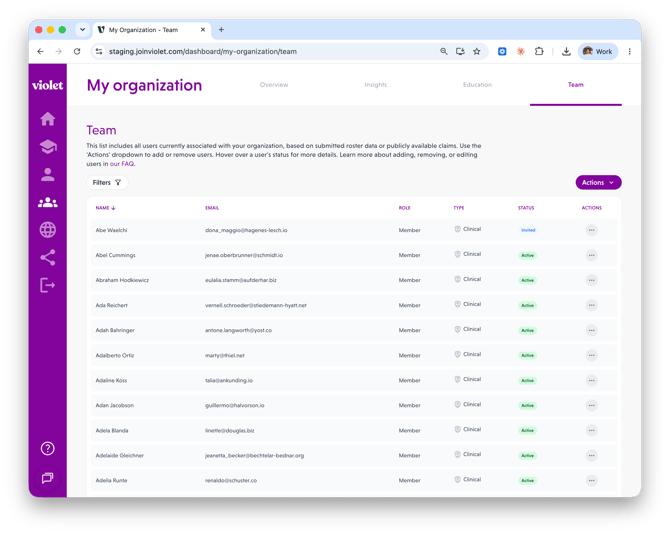
The Team page lists every user associated with your organization, based on your submitted roster data or publicly available claims.
### Understand the team table
Each row shows **Name**, **Email**, **Role**, **Type**, **Status**, and **Actions**:
- **Role** — *Member* (can view their own Benchmarks and access education) or *Admin* (can also access organization insights, add or remove users, assign education, and send reminders).
- **Type** — *Clinical* (licensed and pre-licensed providers, and interns actively delivering care) or *Non-clinical* (staff not directly involved in patient care).
- **Status**:
- **Invited** — invited by email but hasn't activated their account yet.
- **Onboarding in progress** — activated their account but hasn't completed their profile for benchmarking.
- **Active** — activated their account and completed their profile.
- **Pending removal** — a removal request has been submitted to Violet and is being reviewed.
Use the **Filters** dropdown to narrow the list by name, email, user role, user type, or status.
### Add a single user
1. Click **Actions** (top right of the table), then **Add user**.
2. Fill in:
- **First name**, **Last name**, and **Email**.
- **User type** — Clinical or Non-clinical.
- **User role** — Member or Admin.
- **NPI (National Provider ID)** — required for clinical users. Adding an NPI ensures each user has a single account and helps Violet pre-fill their work history for a smoother setup. If the person doesn't have one, check **User does not have an NPI**.
3. Click **Add**. The new user receives a personalized invite email from Violet to activate their account.
### Bulk add users with a CSV
To add many team members at once:
1. Click **Actions** > **Bulk add users**.
2. Click **Download the template here** to get the CSV template. It uses these columns:
- **email** — e.g. john.doe@example.com
- **first\_name** and **last\_name**
- **clinical** — true or false
- **user\_role** — member or admin
- **npi** — the 10-digit NPI for clinical users (leave blank for non-clinical users)
3. Fill out one row per team member, then upload the file and click **Upload list**.
4. Violet validates your file and shows a summary of total users, valid users, and error rows. If there are errors, click **Export error list** to download the problem rows with the reason for each, fix them, and click **Upload corrected list**.
5. Click **Submit valid users**. Each added member receives a personalized invite email from Violet.
### Send invite reminders
- **One user:** open the row's **Actions** menu and click **Send email reminder**. Once it's sent, the item changes to *Email reminder sent*.
- **Everyone at once:** click **Actions** > **Send bulk invite reminders** to email every member who hasn't activated their account yet. (If you don't see this option, it may not be enabled for your organization yet — contact support@joinviolet.com.)
### View or edit a user
1. Click a user's row (or their **Actions** menu > **View user**) to open their details: account information, language proficiencies, and the Benchmarks they've earned.
2. To make changes, choose **Edit user**. You can update their user type, user role, and — if none is on file — their NPI. To change a user's email or name, contact support@joinviolet.com.
3. Click **Save**.
### Remove users
- **One user:** open their **Actions** menu, click **Remove user**, and confirm with **Yes, remove user**.
- **Many users:** click **Actions** > **Bulk remove users** and upload a CSV with a single **Email** column listing the accounts to remove.
Removals are submitted to Violet as a request and processed shortly after — affected users show a **Pending removal** badge in the meantime.
### Export your roster
Click **Actions** > **Export CSV** at any time to download your current team list.
### Related articles
- Assigning education and tracking your team's engagement
- Understanding your organization's inclusivity data and reports
- [Overview](https://help.joinviolet.com/overview?hsLang=en#main-content)
- [Demo](https://help.joinviolet.com/overview?hsLang=en#demo)
- [Details](https://help.joinviolet.com/overview?hsLang=en#details)
- [Providers & Care Teams](https://help.joinviolet.com/providers-care-teams?hsLang=en#main-content)
- [Profile & Benchmarks](https://help.joinviolet.com/providers-care-teams?hsLang=en#profile-benchmarks)
- [CE/CME & Certificates](https://help.joinviolet.com/providers-care-teams?hsLang=en#ce-cme-certificates)
- [Education](https://help.joinviolet.com/providers-care-teams?hsLang=en#education)
- [Care Coordinators](https://help.joinviolet.com/care-coordinators?hsLang=en#main-content)
- [Demo](https://help.joinviolet.com/care-coordinators?hsLang=en#demo)
- [Getting Started](https://help.joinviolet.com/care-coordinators?hsLang=en#getting-started)
- [Provider Search](https://help.joinviolet.com/care-coordinators?hsLang=en#provider-search)
- [Provider organizations](https://help.joinviolet.com/provider-organizations?hsLang=en#main-content)
- [Demo](https://help.joinviolet.com/provider-organizations?hsLang=en#demo)
- [Insights & Reports](https://help.joinviolet.com/provider-organizations?hsLang=en#insights-reports)
- [Education & Engagement](https://help.joinviolet.com/provider-organizations?hsLang=en#education-engagement)
- [Team Management](https://help.joinviolet.com/provider-organizations?hsLang=en#team-management)
- [Health Plans & Provider Network Managers](https://help.joinviolet.com/health-plans-provider-network-managers?hsLang=en#main-content)
- [Demo](https://help.joinviolet.com/health-plans-provider-network-managers?hsLang=en#demo)
- [Network Insights](https://help.joinviolet.com/health-plans-provider-network-managers?hsLang=en#network-insights)
- [Provider Search](https://help.joinviolet.com/health-plans-provider-network-managers?hsLang=en#provider-search)
[](https://joinviolet.com)
Powering person-centered health care, everywhere.
[mailto:support@joinviolet.com](mailto:support@joinviolet.com)
Copyright © 2026, Violet Health